User Manual
Everything you need to sort your trail camera pictures with Trakkdown
Step 1
Get your pictures ready
Insert the SD card from your trail camera, or copy the trail camera pictures from the SD card to a folder on your computer.
Step 2
Choose the folder with your pictures
Click the orange Browse … button on the far right of the screen, in line with the label “Folder with Pictures”.
Step 3
Select the parent folder of your pictures
Navigate to the folder your pictures are in from Step 1. If you left them on the SD card, the location will be something like BUSHNELL (F:) › DCIM. On a Mac, your SD card appears under Locations in the sidebar.
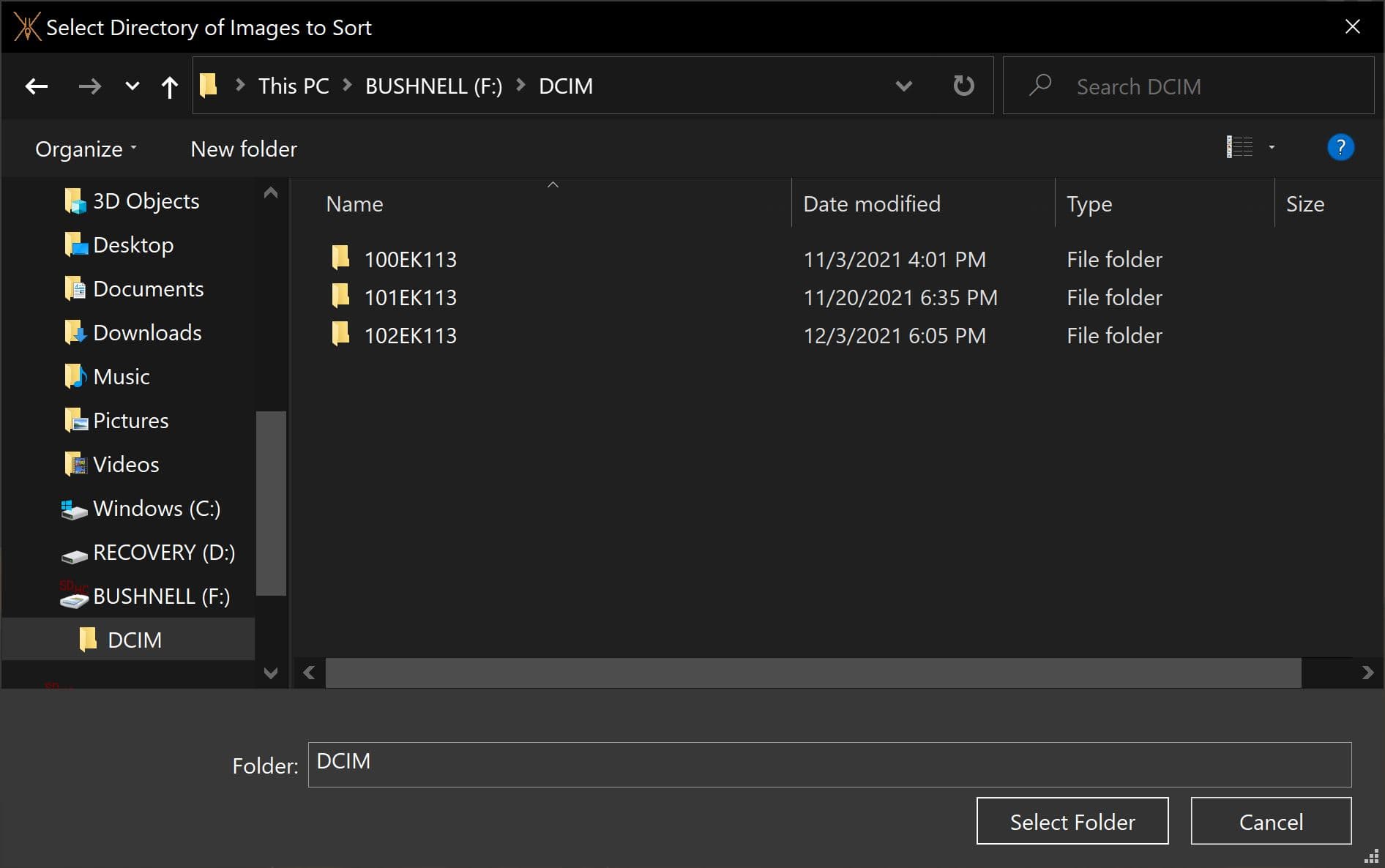
If you have multiple folders of pictures (e.g. 100EK113, 101EK113, 102EK113), you’ll see those folders. Trakkdown automatically goes through each folder for you, so there’s no need to click into one of these subfolders!
Important
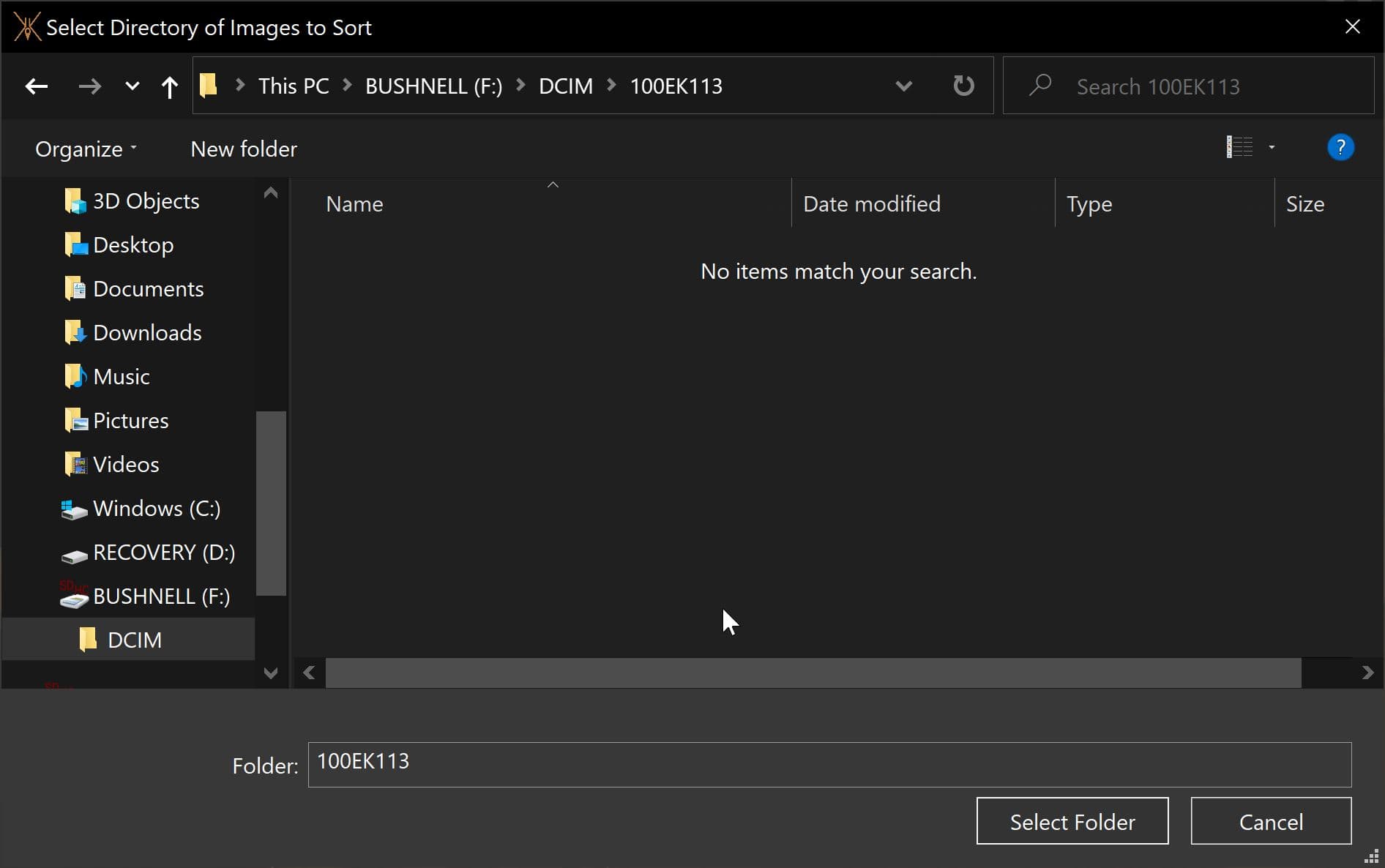
When you’re in the folder where the pictures are, you won’t see the pictures in the folder picker. That’s okay! Just select the folder.
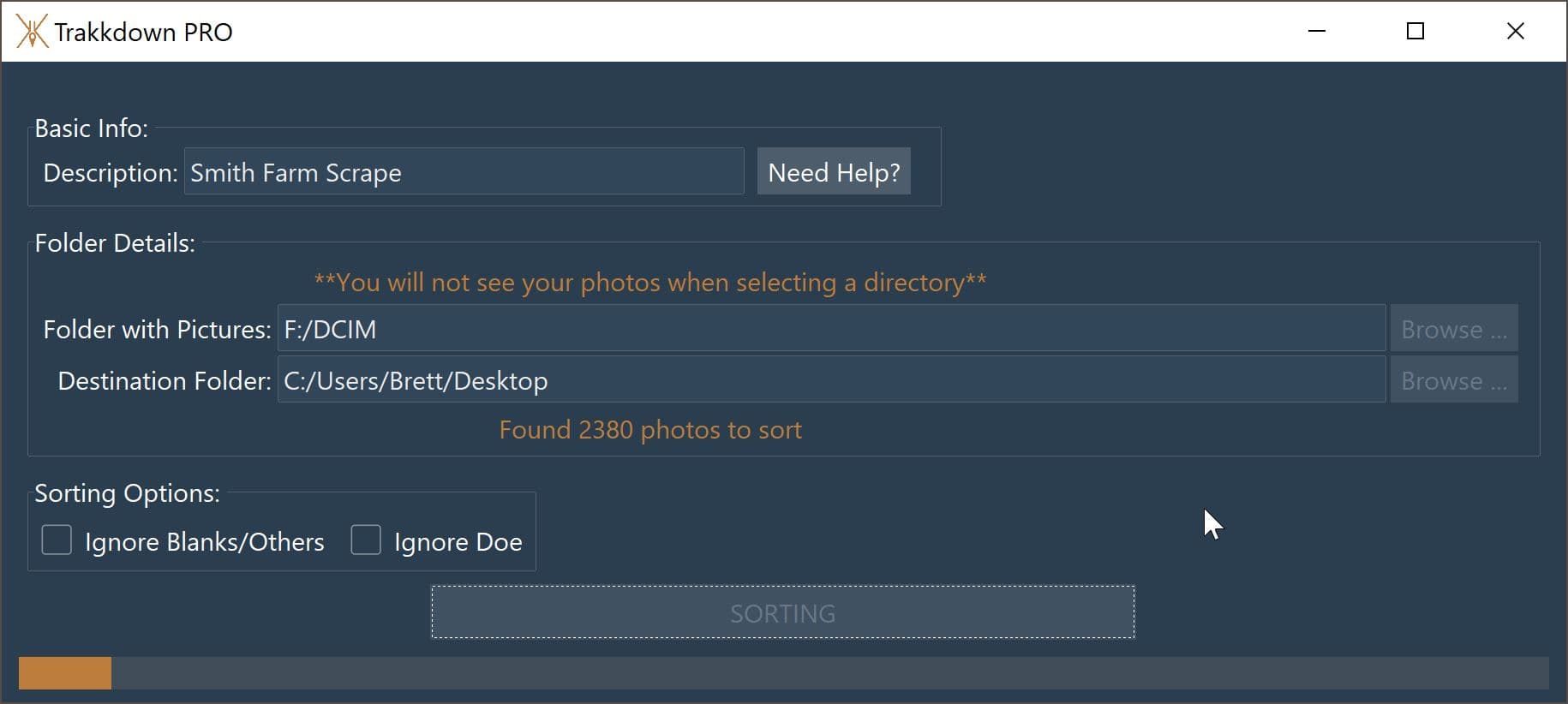
Once you select the folder, Trakkdown tells you how many photos it found in that folder and its subfolders.
Step 4
Choose a destination folder
Click the orange Browse … button on the far right of the screen, in line with the label “Destination Folder”.
Step 5
Select where your sorted pictures should go
Select a destination where you want Trakkdown to sort your pictures to. This will:
- Create a new folder with your Description as its name.
- Create “bucks”, “doe”, and “blanks_others” folders inside that new folder.
- Sort the pictures and copy them into the correct folder. Your original pictures are never changed.
- If you have a PRO license, create a report in that folder.
Step 6
Choose your sorting options
Check “Ignore Blanks/Others” or “Ignore Doe” if you don’t want copies of those pictures. Otherwise, leave both unchecked.
Step 7
Click Sort
Click the Sort button and watch Trakkdown do its magic. You can open your destination folder and see the pictures as they get sorted. Once the progress bar at the bottom is full, an alert pops up letting you know the sort is finished.
Step 8
Find your sorted pictures
Go to your destination folder to see your sorted pictures. If you have Trakkdown PRO, you’ll see your report there as well.
Step 9
Repeat every time you check your cameras!